Digital planning tools are transforming how we organize our lives, and by 2026 this trend is only accelerating. With more people searching for seamless ways to manage tasks, schedules, and goals, Notion stands out as a leading platform for digital planners.
This comprehensive guide is designed to help you master every aspect of a notion digital planner in 2026. Whether you're new to digital organization or seeking advanced features, you'll find practical insights here.
Explore the benefits, discover powerful features, follow step-by-step setup instructions, uncover advanced tips, review top templates, and get answers to common questions. Ready to take control of your productivity journey? Dive in and unlock your potential.
The digital planning landscape has transformed rapidly over the past decade. In 2026, digital planners have become the preferred choice for individuals and organizations seeking to streamline their productivity. The shift from paper to digital is driven by the need for flexibility, efficiency, and customization. Among the available options, the notion digital planner stands out for its adaptability and all-in-one workspace.
Notion’s user base continues to grow exponentially, with a surge in adoption across all age groups and use cases. The platform’s generous free plan has made it accessible to millions. As a result, more users are turning to the notion digital planner to centralize their tasks, goals, and information in one customizable hub.
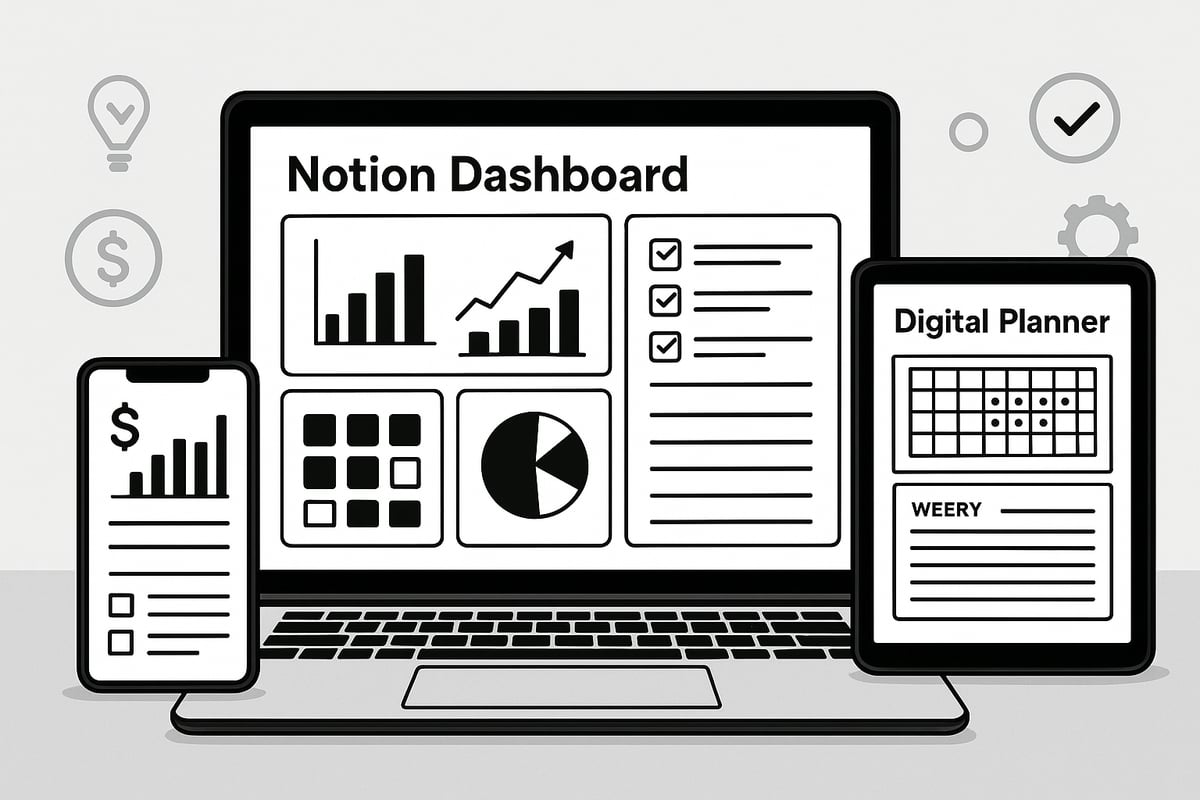
Digital planners have evolved far beyond static to-do lists. In 2026, the notion digital planner offers a dynamic environment where users can build dashboards, automate workflows, and access data from any device. The platform’s flexibility empowers users to design their own layouts, integrate databases, and personalize every aspect of their planning system.
Unlike paper planners, a notion digital planner is not limited by physical boundaries. It provides real-time syncing across devices, ensuring that updates are always accessible—whether you’re on a laptop at work or checking your phone on the go. This seamless connectivity, combined with robust cloud storage, means your data is always secure and up to date.
Notion’s open ecosystem and active community have fueled its growth. As more users adopt digital solutions, the notion digital planner continues to set the standard for innovation and user-driven customization.
Choosing a notion digital planner in 2026 provides clear advantages over traditional paper planners. First, it offers seamless access across multiple devices, allowing you to plan, track, and review your schedule anytime, anywhere. This flexibility is essential for students, professionals, and entrepreneurs managing busy lives.
Real-time syncing and automatic cloud backups ensure that your important plans and data are never lost. The notion digital planner allows you to tailor dashboards, layouts, and templates to your unique workflow. Whether you need a minimalist daily agenda or a robust project tracker, customization is at your fingertips.
Integration with other productivity tools and databases further enhances the experience. You can connect calendars, automate reminders, and link various databases to create a holistic planning environment. These features make the notion digital planner a superior choice for anyone seeking efficiency and control.
A notion digital planner serves as a single hub for all aspects of life and work. It brings together tasks, goals, projects, and personal organization in one cohesive system. Built-in data-driven tracking for habits, finances, and wellness enables users to measure progress and adjust strategies for improved outcomes.
Users consistently report feeling less overwhelmed and having a better work-life balance after adopting a notion digital planner. These results are seen across diverse groups, including students tracking assignments, professionals managing projects, and entrepreneurs overseeing multiple ventures.
By unifying planning and productivity tools, the notion digital planner empowers users to make smarter decisions, stay organized, and achieve their goals efficiently.
The Notion digital planner for 2026 is packed with innovative features that set it apart from traditional planning tools. Whether you're a student, professional, or entrepreneur, these core elements empower you to manage every aspect of your life in one place. Let’s break down what makes the Notion digital planner an essential tool for modern productivity.
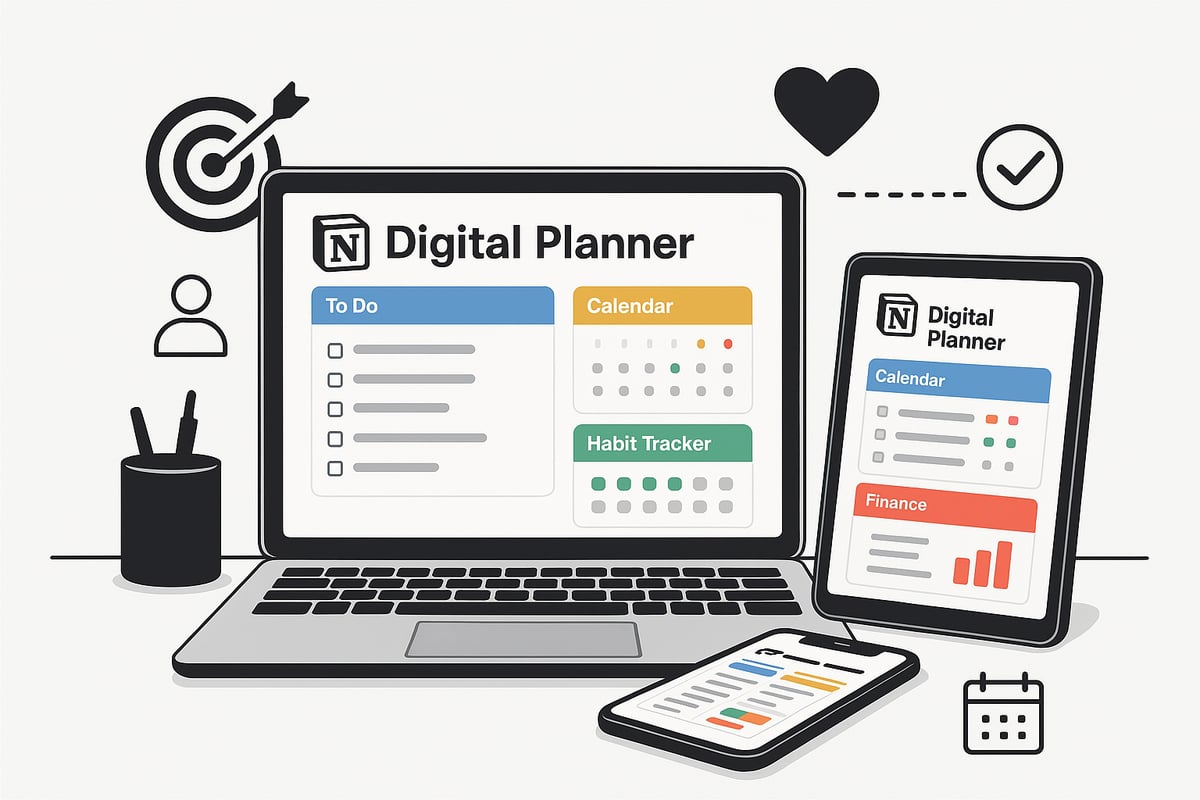
The heart of every Notion digital planner is its all-in-one dashboard. This homebase offers a scrollable view of your daily to-dos, long-term goals, habits, and schedule. With visual navigation, you can jump between planning sections in just a click.
For 2026, dashboards have been redesigned for even greater clarity. For example, the Notion's Official 2026 Planner Template features intuitive tabs, embedded calendars, and quick links to your most-used databases.
This centralized approach ensures your notion digital planner adapts to your workflow, not the other way around.
Effective planning requires robust frameworks. The notion digital planner provides daily, weekly, monthly, and yearly planning tools, each designed to structure your time with precision.
Set objectives using built-in templates for monthly and yearly goals. These templates break down big ambitions into actionable steps, making progress easy to track. For instance, create quarterly milestones and review your achievements with auto-generated summaries.
With the notion digital planner, achieving your targets is not just possible, it becomes systematic.
Building and maintaining habits is simple with embedded habit trackers. The notion digital planner lets you log daily routines, track streaks, and visualize trends over time.
Mood tracking features add another layer for personal growth. You can rate your mood, jot down reflections, and spot patterns that impact your productivity. Data visualization tools turn your progress into easy-to-read graphs.
These trackers make the notion digital planner a powerful ally for self-improvement.
Project management is seamless with the notion digital planner. Use Kanban boards, timelines, and linked databases to organize multi-phase projects. Integrate to-do lists and set reminders so nothing slips through the cracks.
For example, manage a product launch by assigning tasks, tracking deadlines, and updating statuses all within one planner. Drag-and-drop functionality and status tags help you visualize progress at a glance.
Everything stays connected, making the notion digital planner your command center for projects big and small.
Specialized hubs within the notion digital planner handle unique life domains. Health & Fitness hubs include workout libraries and meal planners. Finance sections feature budgeting tools, invoice trackers, and client management databases.
Organizational hubs cover events, birthdays, travel plans, and even pet care. For instance, use the finance tracker to monitor expenses, compare budgets month over month, and set savings goals.
Each hub is fully customizable, ensuring your notion digital planner fits your every need.
Ready to streamline your productivity in 2026? Setting up your notion digital planner is straightforward with the right approach. Follow this step-by-step guide to ensure your planner is tailored to your needs, fully functional, and ready to boost your daily workflow.
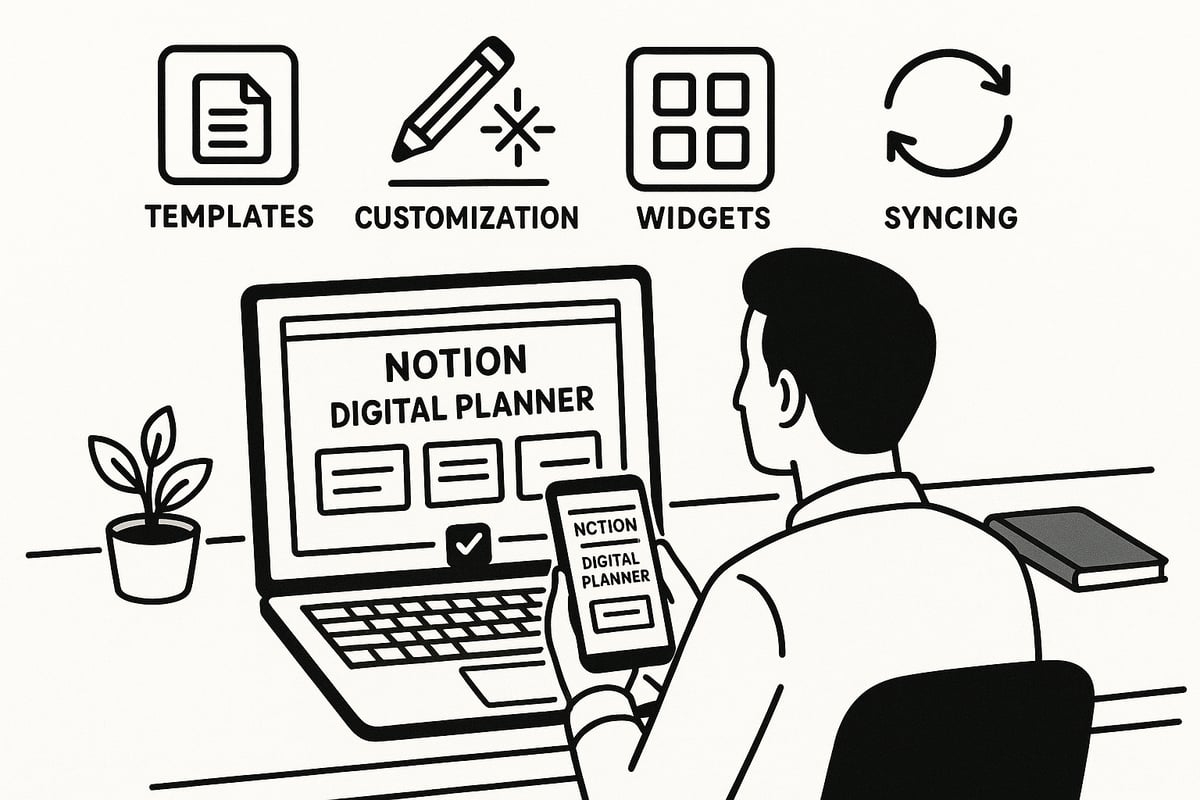
To begin, sign up for a free Notion account if you do not already have one. Notion’s free plan offers robust capabilities, making it ideal for starting your notion digital planner without upfront costs.
Once you log in, familiarize yourself with the Notion workspace. The sidebar provides access to pages, databases, and settings. Explore the interface to understand how blocks, pages, and databases work together.
A quick tip: Bookmark your workspace on all devices for seamless access, as your notion digital planner will sync across desktop, tablet, and mobile.
Selecting the perfect template is essential for an effective notion digital planner. Consider your needs: Do you want daily, weekly, or yearly planning? Are habit tracking and finance management priorities? List your must-have features before browsing.
You can find quality templates in Notion’s official gallery, from trusted creators, or on curated marketplaces. For a comprehensive selection, explore the Notion planner templates collection, which showcases top-rated options for every planning style.
Compare templates based on:
Preview several templates to ensure they align with your workflow before making a decision.
Once you’ve selected a notion digital planner template, duplicating it into your workspace is simple. Most templates include a “Duplicate” button—just click it while logged into your account.
If importing from an external source, follow the provided instructions to add the template to your workspace. Make sure to review all imported pages and databases to confirm that everything transferred correctly.
Here’s a quick checklist for importing:
A successful import means your planner is ready for customization.
Personalize your notion digital planner by editing dashboards, adding or removing sections, and incorporating your branding. Start by renaming pages to reflect your routines and responsibilities.
Edit databases to add custom properties, such as priority levels, deadlines, or tags. For habit tracking, modify the tracker to include your specific goals and preferred frequency.
You can also personalize visuals by:
This customization ensures your planner supports your unique workflow and goals.
Enhance your notion digital planner by embedding widgets and linking databases for a unified experience. Popular integrations include countdown timers, Google Calendar, weather widgets, and productivity trackers.
To link databases, use Notion’s relation and rollup features, creating interconnected pages for tasks, goals, and notes. Embedding widgets can be as easy as copying an embed code into a new block.
Example widget ideas:
Experiment with different tools until your planner feels complete.
With your notion digital planner set up, establish a planning routine. Start each day by reviewing your dashboard, checking scheduled tasks, and updating progress on goals.
Set recurring tasks and reminders for consistency. Use weekly and monthly views to reflect on accomplishments and adjust priorities. Incorporate regular check-ins, such as a Sunday review, to keep your system aligned with your objectives.
A sample daily routine:
Consistency will help you maximize the benefits of digital planning.
Protect the data in your notion digital planner by enabling regular backups and syncing across all devices. Notion automatically saves your changes in the cloud, but it is wise to export critical databases periodically for added security.
Schedule an annual or quarterly review to refresh your planner, archive completed projects, and update templates as needed. If your planner grows large, optimize performance by archiving old pages and simplifying databases.
Maintenance ensures your notion digital planner remains efficient, organized, and ready for whatever the year brings.
Elevate your notion digital planner from a simple productivity tool to a powerhouse of efficiency with advanced techniques. For experienced users, mastering these features unlocks deeper levels of control, automation, and personalization. Let’s explore how you can fully optimize your digital workspace for unparalleled productivity.
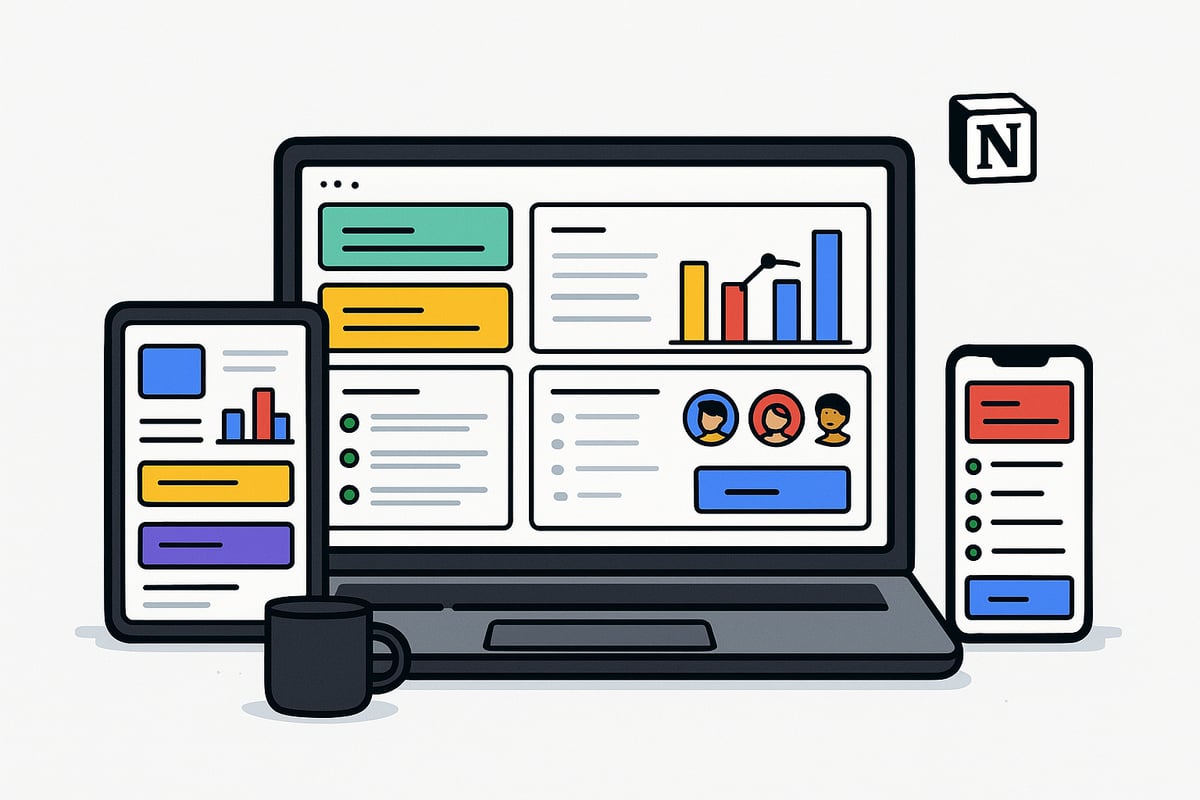
To maximize your notion digital planner, explore advanced database relations and rollups. Linking databases allows you to connect tasks, goals, and projects, creating a seamless planning ecosystem. Rollups enable you to summarize and analyze data efficiently, such as aggregating project progress or tracking completed habits across categories.
For workflow automation, leverage the Notion API and third-party tools. Automate repetitive tasks, such as updating statuses or sending reminders, to save time and reduce manual effort. For example, you can set up an automated system where completed daily tasks update a weekly progress tracker, giving you real-time insights without extra steps.
Experiment with formulas for dynamic calculations, such as tracking streaks or budgeting. The more you connect and automate within your notion digital planner, the more actionable and insightful your planning becomes.
A visually appealing notion digital planner boosts engagement and usability. Start by adding custom icons and cover images to personalize your dashboards. Use color-coded tags, progress bars, and habit streak visualizations to make important information stand out.
Elevate your planner with interactive widgets. Embed calendars, countdowns, and weather widgets for real-time updates. You can also add charts to visualize goals or financial data. For a step-by-step walkthrough of enhancing your planner with widgets and tools, consult the Notion tools and widgets guide.
Consider creating a visual dashboard that uses tables, charts, and color blocks. Not only does this make navigation intuitive, but it also turns your notion digital planner into a dynamic command center.
Collaboration is essential for teams, families, or accountability partners using a notion digital planner. Share pages or entire workspaces with others by adjusting permissions for view, comment, or edit access. This ensures everyone can participate while maintaining control over sensitive data.
Use built-in commenting and mentions to facilitate real-time feedback and discussions. Collaborative editing allows multiple users to update plans, assign tasks, and track progress together. For example, a project manager can create a shared project board, assign roles, and monitor deadlines, all within a single dashboard.
With a notion digital planner, group planning becomes transparent, streamlined, and accessible from any device.
Even the most robust notion digital planner can encounter challenges as your setup grows. Common issues include slow loading times or sync delays, especially with complex databases. To optimize performance, archive completed tasks regularly and use filtered views to limit on-screen data.
If you experience recurring problems, check for outdated widgets or integrations and update them as needed. For large planners, break down data into linked subpages to maintain speed and clarity. Regularly review your setup to remove redundant sections and streamline workflows.
By proactively maintaining your notion digital planner, you ensure it remains responsive and effective as your productivity hub.
Selecting the right notion digital planner template can transform your productivity in 2026. With so many options available, it is essential to know what makes a template stand out. The best templates combine intuitive design, robust features, and the flexibility to adapt to your unique workflow.
When evaluating a notion digital planner, prioritize templates that offer comprehensive dashboards, customizable trackers, and seamless integration with other Notion tools. Look for options that are regularly updated, well-supported, and highly rated by the Notion community.
Key criteria include:
Templates that meet these standards ensure a reliable and enjoyable planning experience. Consider how each notion digital planner adapts to your daily, weekly, and yearly routines, making it easier to stay organized and productive.
Some of the most popular 2026 templates come from established creators and marketplaces, offering advanced functionality and user-friendly layouts. For example, the Notion daily planner template provides a ready-to-use structure for daily schedules, habit tracking, and task management.
A standout template might include:
Use the table below to compare essential features:
| Feature | Daily Planner | Yearly Planner | Finance Tracker | Project Manager |
|---|---|---|---|---|
| Dashboard | ✓ | ✓ | ✓ | ✓ |
| Habit Tracking | ✓ | ✓ | ✓ | |
| Calendar Integration | ✓ | ✓ | ✓ | |
| Customizable Layout | ✓ | ✓ | ✓ | ✓ |
Choosing a top-rated notion digital planner ensures you have the tools needed for effective life management.
Notion digital planner templates are designed to suit various lifestyles and professions. Students can benefit from planners that include assignment tracking, calendar sync, and study habit analytics. Business professionals may prefer templates with project management, finance, and client tracking modules.
Examples of specialized templates include:
For a curated selection, explore Notionland's Printable & Digital Planners, which offer both free and premium templates tailored to different planning needs. This ensures everyone can find a notion digital planner that fits their goals.
Accessing a notion digital planner is straightforward. Start by previewing templates in the Notion marketplace or from trusted creators. Most templates can be duplicated to your workspace with a single click. Test the template’s features and customize sections to match your workflow.
Follow these steps:
User testimonials often highlight reduced overwhelm and improved productivity. In fact, most users report feeling more organized and seeing a real boost in work-life balance after adopting a notion digital planner. Choose templates with positive community feedback to maximize your results.
Curious about how a notion digital planner works or what you need to get started? Below, we answer the most common questions to help you make the most of your digital planning experience.
What is a Notion digital planner and how does it work?
A notion digital planner is a customizable template within Notion that helps you organize tasks, goals, calendars, and trackers in one digital hub. It is fully flexible and adapts to your unique workflow.
Is Notion’s free plan enough for digital planning?
Yes, the free plan offers all core features needed for most users. You can create and use a notion digital planner without a paid subscription, making it accessible for everyone.
How do I get started with a Notion digital planner?
Sign up for Notion, choose a template, and personalize it to your needs. For a step-by-step visual guide, watch this helpful Organize Life in Notion in 2026 – Planner Tour video.
Can I migrate from another planner or upgrade my template?
Absolutely. You can import data, duplicate templates, and upgrade to newer versions as your planning needs evolve.
Are there any ongoing costs or subscriptions?
Most features are free. Advanced collaboration or storage options may require a paid plan, but for individual digital planning, the free version is typically sufficient.
How secure and private is my data in Notion digital planner?
Notion uses encryption and secure cloud storage. You control sharing settings, ensuring privacy and data protection for your notion digital planner.
What should I do if I encounter issues with my planner?
Try these steps:
Where can I find more resources and support for Notion planners?
Explore Notion’s official help center, community forums, and template galleries for ongoing tips and support.
Now that you’ve seen how a Notion digital planner can transform your workflow in 2026—from streamlined dashboards to powerful trackers and customizable templates—you might be ready to take the next step toward more organized days. At Notionland, you’ll find expertly crafted templates and tools that fit all aspects of your life, whether you’re managing work projects, tracking habits, or planning finances. If you’re looking to put these strategies into action and truly elevate your productivity, you can explore a curated selection of top-tier Notion resources right now. Your ideal digital planner is just a click away—Shop Now