Unlock the full potential of your visual workspace with the notion gallery view, the ultimate tool for clarity and organization in 2026.
This guide will show you how to master every aspect of Notion Gallery View, transforming your workspace into a visually engaging and highly functional hub.
You will discover step-by-step strategies, expert tips, and advanced customization techniques designed to elevate your workflow.
Explore setup basics, card customization, image management, advanced filters, troubleshooting, and real-world examples to achieve visual mastery and take confident next steps.
Unlocking the power of visual organization starts with understanding what makes the notion gallery view unique. This database layout transforms your Notion workspace into a collection of visually engaging cards, each showcasing images and key information at a glance. If you are new to this concept or want a detailed overview, NoteForms: Understanding Notion's Gallery View provides an excellent primer.
The notion gallery view stands out for its flexible and intuitive interface. You can display items as cards, each with a custom cover image, title, and selected properties. This layout makes it simple to scan, recognize, and interact with your content—ideal for image-heavy projects or creative workflows.
Key Features of Notion Gallery View:
With these features, notion gallery view is perfect for building mood boards, team directories, or creative portfolios. Visual thinkers can quickly arrange projects, track progress, or display assets with clarity.
How does gallery view compare to other Notion database layouts? Notion supports six main views: Table, Board, Timeline, Calendar, List, and Gallery. While tables and lists excel at dense, data-driven layouts, gallery view is uniquely suited for visual content. Its card-based structure highlights images and key details, making it easier to spot trends and recognize items at a glance.
Here’s a quick comparison of Notion’s database views:
| View | Best For | Visual Focus | Custom Covers | Grouping |
|---|---|---|---|---|
| Table | Data analysis, spreadsheets | No | No | Yes |
| Board | Kanban workflows | No | No | Yes |
| Timeline | Project timelines | No | No | Yes |
| Calendar | Date-based planning | No | No | No |
| List | Simple lists | No | No | Yes |
| Gallery | Images, portfolios | Yes | Yes | Yes |
Imagine an employee directory where each card displays a team member’s photo, name, role, and contact details. Or a project showcase where every card highlights a featured image and key project milestones. With notion gallery view, these scenarios become not just possible, but visually compelling.
The true benefit of notion gallery view is accelerated recognition and navigation. Creative professionals, marketers, and teams handling visual content can quickly find what they need. Cards offer immediate context, reducing the time spent searching through lists or tables.
In summary, notion gallery view is the ideal choice for anyone looking to organize and display information visually. Its flexibility, customization, and intuitive design make it a must-have tool for transforming your Notion workspace into a visually engaging and highly functional hub.
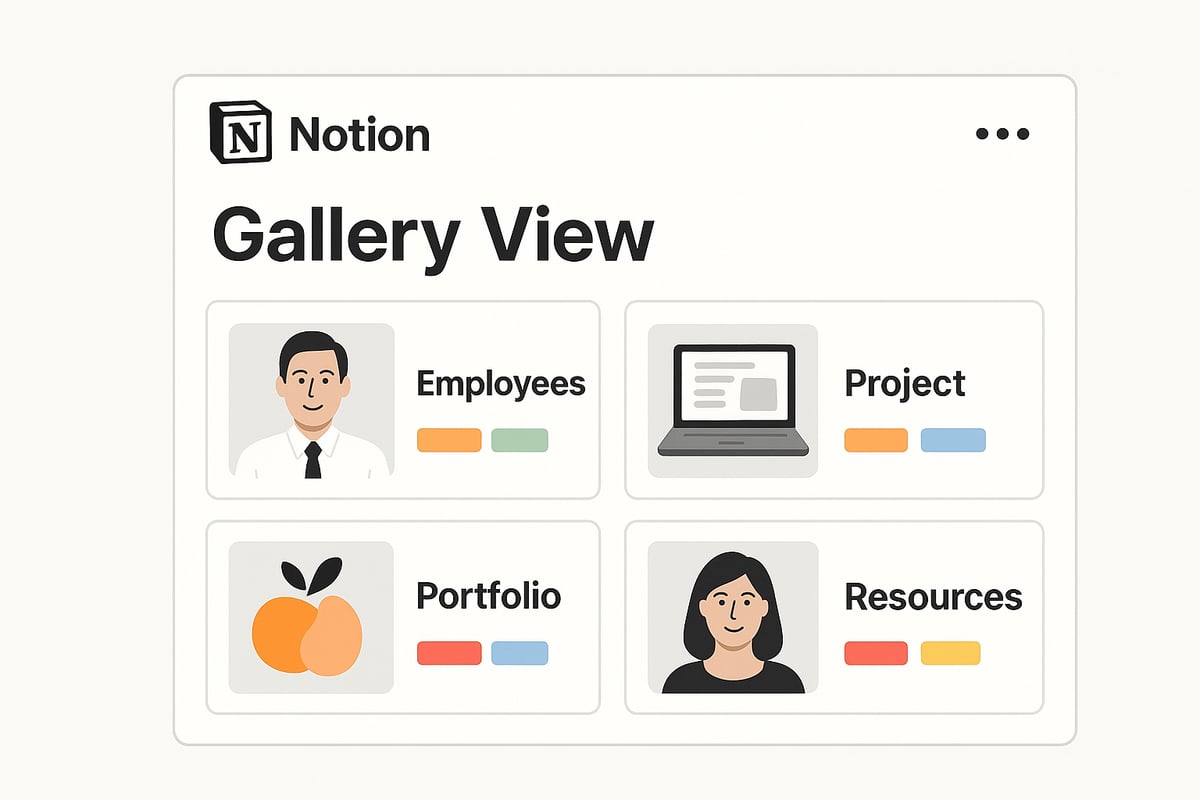
Unlocking the full power of Notion Gallery View begins with a well-organized setup. This step-by-step section guides you through creating, customizing, and sharing your gallery for optimal clarity and impact.
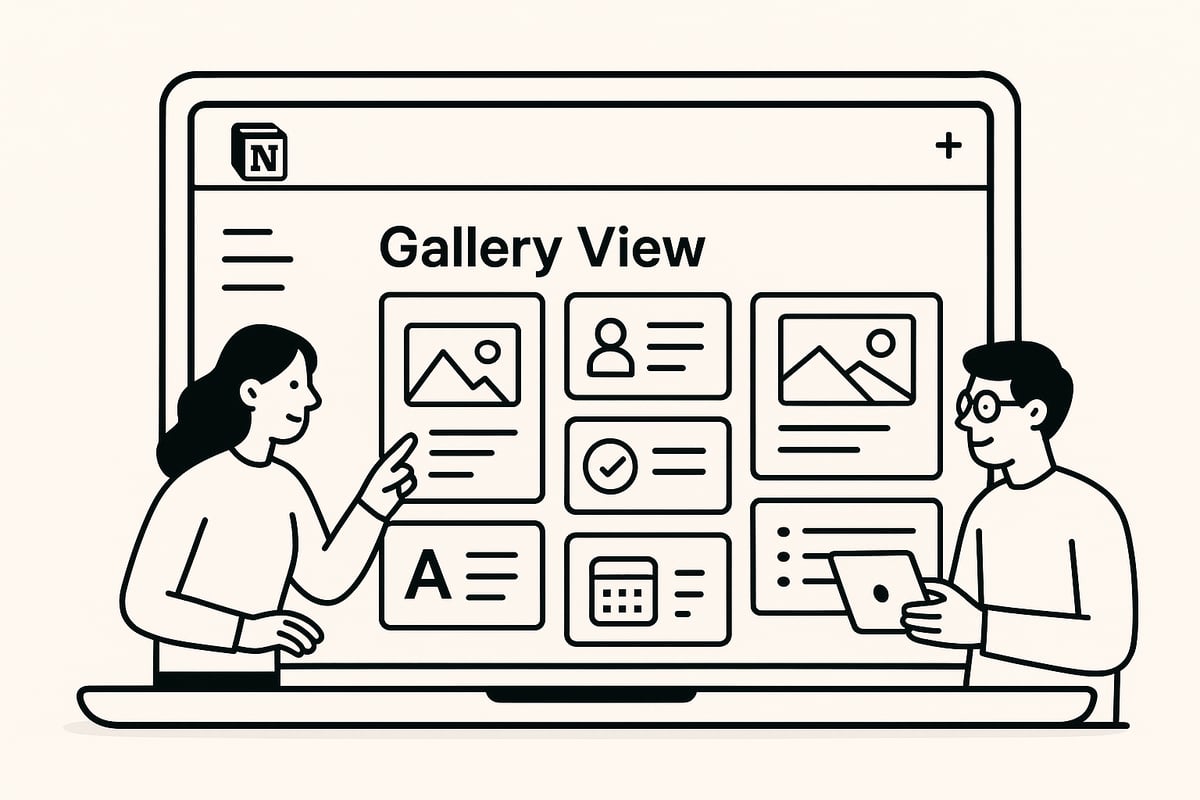
To start with Notion Gallery View, you can create a new gallery or convert an existing database. Type /gallery in any Notion page to insert a fresh gallery database instantly. Alternatively, switch the view of a current database to Gallery for a visual transformation.
Choose whether to build from scratch or use a data source. For example, set up a travel photo gallery by creating properties for destination, date, and highlights. Or, launch a product catalog with images and feature tags.
A clear structure is essential. Decide early which properties each card should display, ensuring consistency. You might also consider using Notion templates for galleries to accelerate your setup, especially if you want a professional layout right from the start.
Notion gallery view makes it easy to visualize your data as you build. For best results, plan your database fields and card covers before adding large amounts of content.
Enhance every card in your Notion Gallery View by adding cover images. You can upload files, use Unsplash integration, or embed external image links. Click the card, then select "Add Cover" to start. For extra visual identity, add icons and set precise card titles.
Choose which properties to display on each card. Use the "eye" icon in the properties list to toggle visibility for status, tags, or dates. This helps keep your gallery focused and uncluttered.
For example, in a blog post gallery, show the author, publish date, and a featured image on each card. This approach provides context at a glance and supports a more engaging, scannable layout.
Here's a quick reference for customizing properties:
| Property Type | Display Option | Example Use |
|---|---|---|
| Status | Toggle | Draft, Published |
| Tag | Toggle | Category, Topic |
| Date | Toggle | Deadline, Created |
| Icon | Set per card | Blog, Product |
Preview your gallery frequently. Adjust which properties are visible until you achieve the right balance of information and aesthetics. The flexibility of notion gallery view ensures you can tweak cards as your needs evolve.
With Notion Gallery View, controlling the look of your cards is simple. Access the "Layout" menu from the three-dot icon in the upper right corner of your gallery. Here, choose between Small, Medium, or Large card sizes to match your visual preference.
Decide how each card previews. Options include displaying the Page Cover, Page Content, or None. Selecting the right preview impacts how images and text draw attention.
You can also reposition cover images for the perfect crop. For a mood board, Large cards with prominent images help ideas pop. For a quick reference gallery, Small cards keep things compact.
Test different combinations to find the best fit for your workflow. Notion gallery view offers a fluid way to match visual style with functional needs.
Organizing your Notion Gallery View is crucial for clarity. Use the "Group by" feature to cluster cards by any property, such as team, project phase, or status. This makes it easier to scan and find what matters most.
Apply filters to display only relevant items, like highlighting featured projects or upcoming deadlines. Sorting lets you order cards by priority, date, or custom fields, so key information always appears first.
Here’s a typical workflow:
Lock your database to prevent accidental edits once your gallery is organized. This maintains integrity as you collaborate with others. Mastering these features in notion gallery view ensures your workspace remains both dynamic and orderly.
Collaboration is seamless with Notion Gallery View. Invite teammates with specific permissions to edit or view your gallery. For broader visibility, publish your gallery to the web, making it accessible to anyone with the link.
You can embed galleries into external websites or client portals, making them perfect for portfolios or product showcases. For example, share a design portfolio gallery with clients by embedding it on your business website.
Always review security settings before sharing. Control access levels to protect sensitive data while showcasing your best work. With notion gallery view, sharing visual databases is both powerful and secure.
Effectively managing images and visual elements is crucial for creating a visually engaging and organized Notion Gallery View. High-quality visuals, consistent formatting, and well-configured properties can elevate your database from a simple list to a dynamic visual hub.
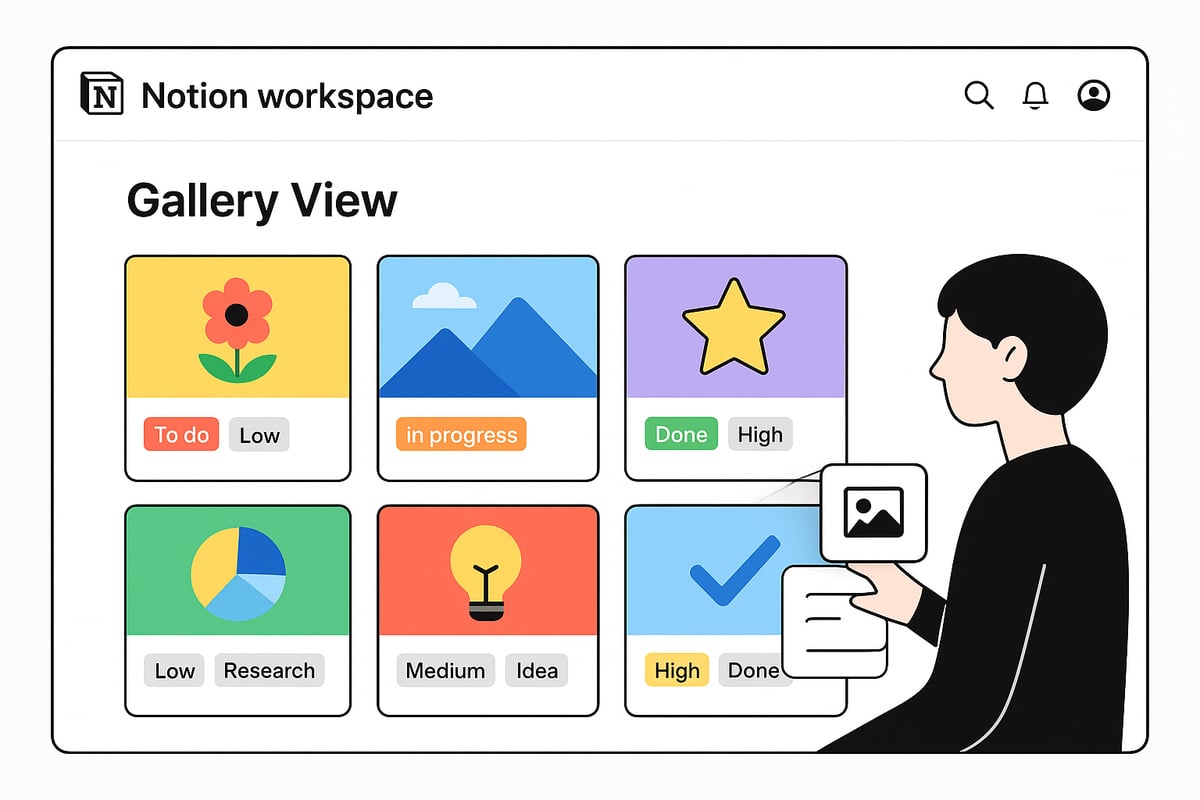
To add images in Notion Gallery View, you can upload files directly, use Unsplash integration, or embed external image links. Each card can feature a cover image, which appears as the main visual element in the gallery.
When setting up your gallery, choose between using the card’s cover image or displaying content images from within the page. Go to the card options, select "Card preview," and pick either "Page cover" or "Page content." For best results, ensure every card uses the same preview setting for visual consistency.
For example, a product gallery benefits from branded cover images on each card, making it easy to scan and compare. When managing images, check file compatibility and avoid broken links to preserve a seamless notion gallery view experience. If you need detailed guidance on image handling, the Notion Help Center: Gallery View provides official instructions.
Consistent image sizing is vital for a polished notion gallery view. The recommended cover image size is 1500px by 600px, using a 5:2 aspect ratio. Supported file formats include JPEG, PNG, and GIF.
To optimize performance:
A design portfolio with standardized artwork sizes ensures every card appears neat and professional. Regularly review your images to maintain gallery clarity.
In notion gallery view, you can highlight key properties directly on each card. Show or hide properties such as ratings, tags, or dates by using the "eye" icon in the properties menu. This control allows you to surface the most relevant information at a glance.
Color-coding properties or adding icons can make scanning faster. For example, a recipe gallery might display prep time and ratings beneath each image. Consistent property formatting across cards enhances the overall gallery structure and usability.
Common display issues in notion gallery view include missing images, cards not showing covers, or properties not appearing. To resolve these:
If a team directory gallery is missing profile photos, verify that each card has a properly set cover image and the correct preview option. Following a troubleshooting checklist ensures your notion gallery view remains visually consistent and functional.
Unlocking the full power of Notion Gallery View means venturing beyond the basics. Power users can transform their workspace into a dynamic and visually engaging hub by mastering advanced grouping, filtering, database integrations, and automation. Here is how to elevate your experience with Notion Gallery View and make your data work smarter for you.
To make the most of Notion Gallery View, start by leveraging advanced grouping and filtering options. Grouping cards by multiple properties, like project phase and team, creates visual layers that clarify complex data. For example, you can display a content calendar where cards are grouped by publish status and sorted by deadline.
These strategies ensure that your notion gallery view remains organized, actionable, and visually intuitive. By combining grouping and sorting, you streamline navigation and quickly surface what matters most.
Integrating databases is essential for advanced workflows in Notion Gallery View. You can link gallery cards to other pages or databases, creating a web of interconnected information. Use the Relations property to connect a project gallery with a task database, then display relevant tasks as rollups inside each card.
By integrating these features, your notion gallery view becomes a central dashboard, connecting resources and streamlining your workflow. This interconnected approach supports complex projects and team collaboration.
Efficiency in Notion Gallery View often depends on automation and interactive elements. Database buttons allow you to add quick actions to each card, such as marking an item complete or duplicating a template. For sales teams, you might add a “Contacted” button to a gallery of leads, updating the status with a single click.
With these automations, your notion gallery view transitions from a static display to an interactive workspace. This saves time, reduces manual work, and ensures consistency across your workflow.
Templates are a secret weapon for mastering Notion Gallery View. Ready-made templates save time and guarantee best practices, especially for portfolios, directories, and trackers. Start by exploring community or premium templates designed specifically for gallery layouts.
By starting with a strong template, your notion gallery view gains structure and visual clarity from the outset. Templates also ensure that you benefit from expert layouts and property configurations, accelerating both setup and productivity.
For those looking to fast-track their notion gallery view setup, Notionland offers a curated collection of templates tailored for creative, business, and productivity use cases. These templates are expertly designed by Notion Certified creators, ensuring both usability and aesthetic appeal.
By leveraging Notionland’s Gallery View Templates, you can quickly implement advanced layouts and strategies, making your notion gallery view both functional and visually stunning.
Unlocking the full potential of notion gallery view begins with seeing how it comes to life through practical templates. These real-world examples show how professionals and individuals harness visual organization to streamline creative, team, business, and personal workflows.
Artists, designers, and photographers use notion gallery view templates to present their work with visual flair. A gallery portfolio template transforms each project into a card featuring a large image, title, and client feedback.
Grouping cards by genre or year offers instant navigation. For mood boards, users can collect inspiration, color palettes, and design references in a single gallery, letting creativity flow visually. With customizable card sizing and property toggles, visual storytelling becomes seamless.
Efficient team management often starts with a well-structured notion gallery view template. Visual employee directories display photos, roles, and contact information, making it simple to find colleagues at a glance.
Templates allow grouping staff by department or location. Each card can link to a detailed profile page, showing skills, work history, and contact links. This approach enhances onboarding, knowledge sharing, and collaboration across any organization.
A notion gallery view template is ideal for organizing product lines or service offerings. Each card represents a product with an image, price, and feature list.
Businesses can filter or sort items by inventory status, category, or promotion. Embedding a gallery into a website allows customers to browse products visually. Templates ensure a consistent, polished look and reduce setup time for teams managing catalogs.
Editorial teams and content creators benefit from a notion gallery view template tailored for blog and campaign planning. Each card displays a cover image, status, deadline, and author, making tracking progress effortless.
Grouping by publish stage and filtering for upcoming or featured content ensures nothing slips through the cracks. For a practical guide to building these templates, see the Notion blog template guide, which offers step-by-step instructions and customization tips.
Notion gallery view templates unlock visual clarity for personal goals and hobbies. Travel planners use cards with trip photos, destinations, and notes, while book trackers display covers, authors, and ratings.
Templates support quick setup for reading lists, hobby logs, or event planning. Sharing galleries with friends or family adds a collaborative touch, making personal organization visually engaging and interactive.
Unlocking the full potential of your notion gallery view requires smooth performance and reliable image display. Even with a robust setup, occasional issues can disrupt your workflow. Let’s walk through the most common problems and actionable solutions to keep your gallery running at its best.
Encountering missing images, slow load times, or invisible card properties in your notion gallery view? These challenges often stem from incorrect card preview settings, unsupported file types, or broken image links. Double-check that your card preview is set to "Page cover" or "Page content" to ensure images display as intended.
If images are not appearing, verify that all links are valid and that files are in JPEG, PNG, or GIF format. Remember, free Notion plans support images up to 5MB; larger files can cause sluggish loading or failures. For a deeper dive into Notion’s database capabilities and troubleshooting, visit Learn Notion database features.
Consistent, high-quality visuals are essential for a productive notion gallery view. Optimize performance by compressing images before uploading, keeping them within the recommended 1500px by 600px size. Uniform sizing not only speeds up loading but also creates a cohesive look across cards.
Clear your browser cache and refresh the page to solve temporary glitches. If issues persist, try re-uploading images or updating property visibility using the “eye” icon. Routine maintenance ensures your gallery remains visually sharp and responsive.
When problems arise in your notion gallery view, follow this checklist:
Following these steps systematically can resolve most display and performance issues.
Stay ahead by regularly updating your notion gallery view templates and monitoring for new Notion features. Use community resources and expert guides, like Notion VIP: Mastering the Gallery Block, to discover advanced troubleshooting and customization techniques.
Consider archiving old or unused cards to improve speed, and always test galleries on multiple devices for consistent performance. With proactive care, your gallery view will remain a powerful, visually engaging hub.
After exploring how to set up, customize, and optimize Notion’s Gallery View for your workspace, you now have the tools to transform how you organize and visualize information. If you’re ready to take your Notion setup even further, why not explore curated templates and advanced resources tailored for creative and business needs? You can access a world of expertly designed solutions to streamline your workflow and bring your ideas to life. Let’s make your Notion experience even more powerful—discover what’s possible and Shop Now.